
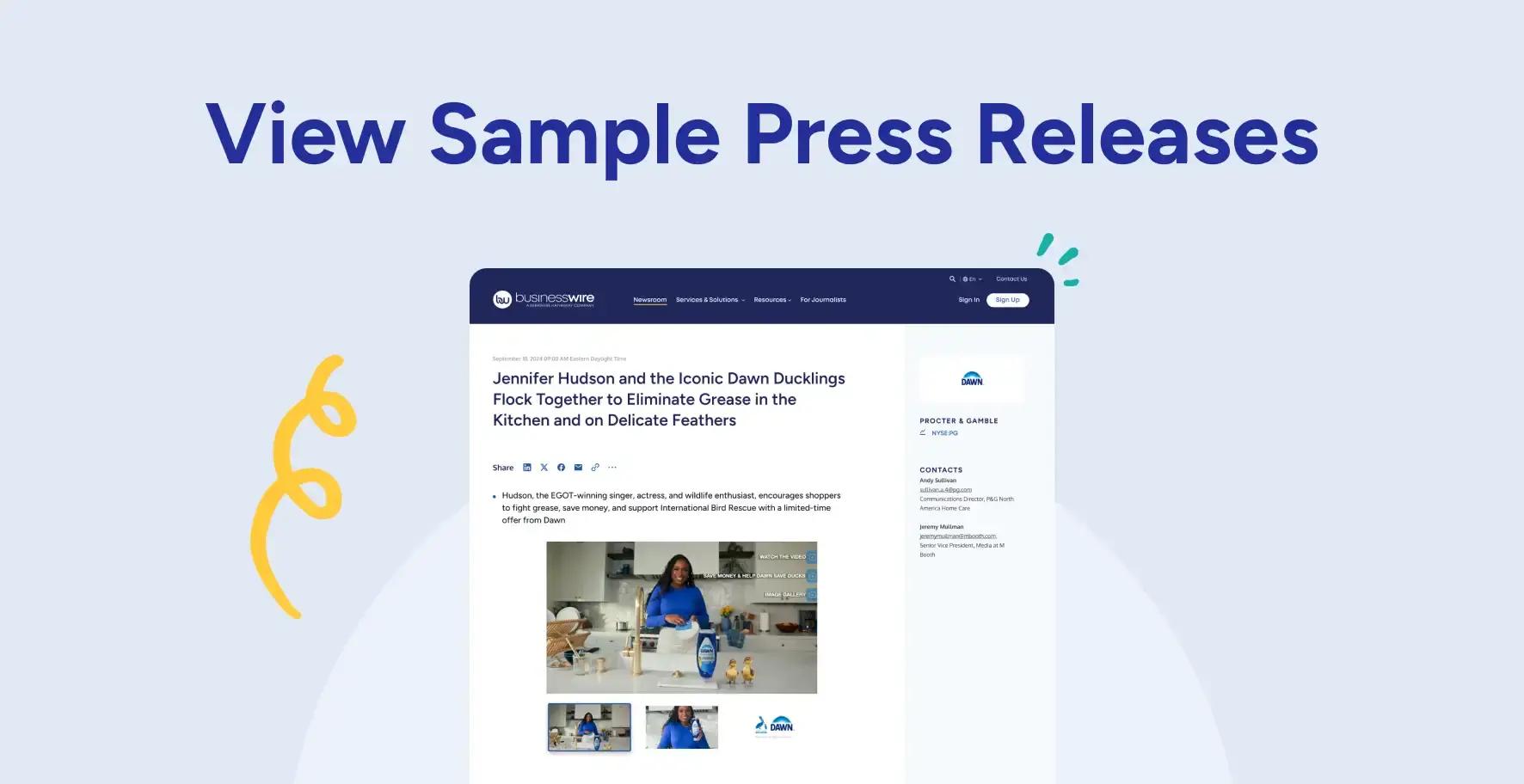
Viewing Business Wire’s Newsfeed
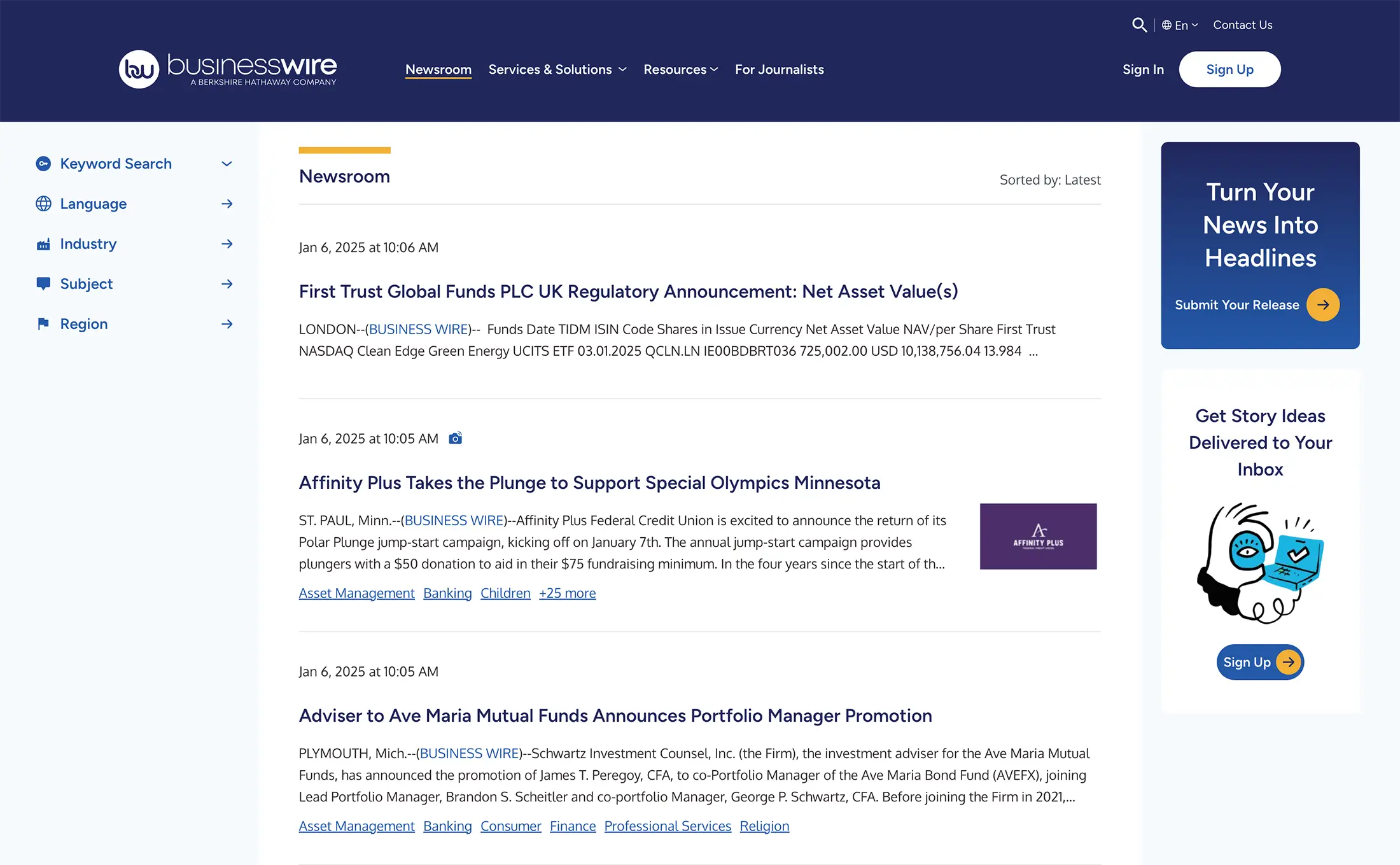
View the latest news and sort by language, industry, subject, and region, or enter your own search terms.
You can log in or set up an account at any time. Logging in lets you quickly view your saved searches, save new searches, and update your preferences.
Don’t have a Business Wire account yet? No problem! When you’re ready to save your search and start receiving your customized newsfeeds via email, you will be prompted to create an account. Easy!
Customizing Your Personal Newsfeed
Use the keyword search or search filters on the left to find news releases you’re most interested in viewing.

Keyword Search
- Enter a keyword or phrase. Determine if you want to search for this keyword in an entire release, or in the headline, ticker, ISIN, dateline, or body only. Select whether your search should contain or not contain the keyword you’ve inputted. Then click “Add Keyword.” Your results will be displayed with the most recent release shown first.
- Each time you click “Add Keyword,” the new keyword or phrase is added to your search and expands your results. You can see all added keywords in two places: below the Keyword Search fields on the left, and at the top of your search results, under the “Newsroom” heading.
- To remove a search keyword or phrase, click the “x” next to the term displayed underneath the “Add Keyword” button or above your results. Click “Clear Search” to clear all filters and keywords.
- It is not necessary to use quotation marks when entering keywords or phrases in the Keyword Search box.
Search Filters
- Add Language, Industry, Subject, or Region filters to search for news releases, or to refine your search results.
- For example, click “Language”, then select any languages of interest. Or click “Industry,” and select the industries you’re most interested in.
- Some filters have sub-options; you can view news related to “Automotive,” or you can get more specific and view news for “Off-Road Trucks & SUVs.”
- As you add keywords or filters, your newsfeed results will automatically be updated.
Tip: News releases will be displayed in all languages unless you select specific languages under the Language filter.
Saving Your Customized Newsfeed
Save your search so you can easily revisit the same newsfeed in the future.
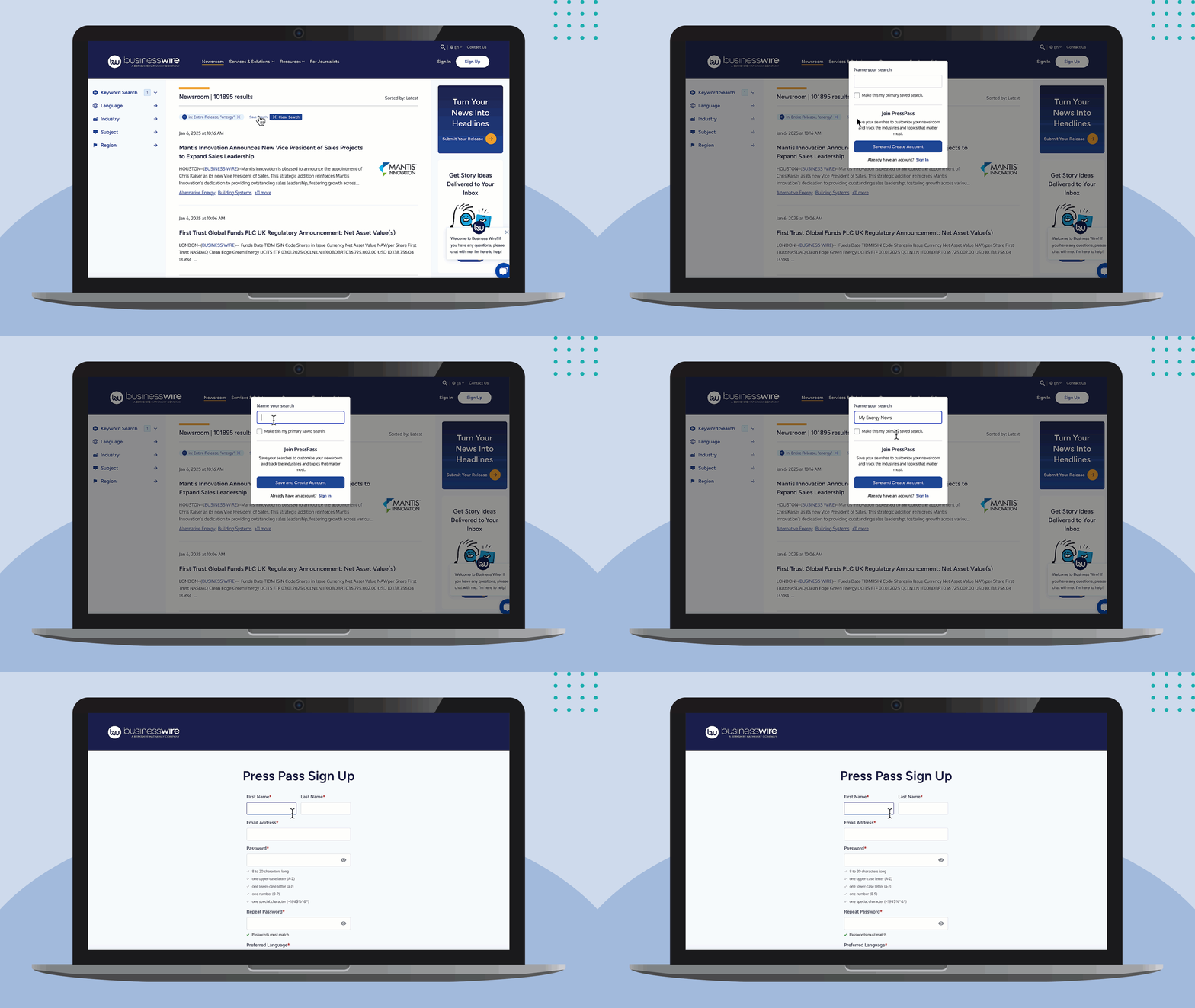
Click “Save Search” at the top of the newsfeed and enter a name for your search.
If you have log in credentials, you can enter them here – click “Sign In”. You can enter your PressPass or Business Wire Connect username and password to log in. If you need to create an account, click “Save and Create Account” and complete the next steps.
If you’re already logged in, enter a name for your search and determine if you’d like to save this as your primary search.
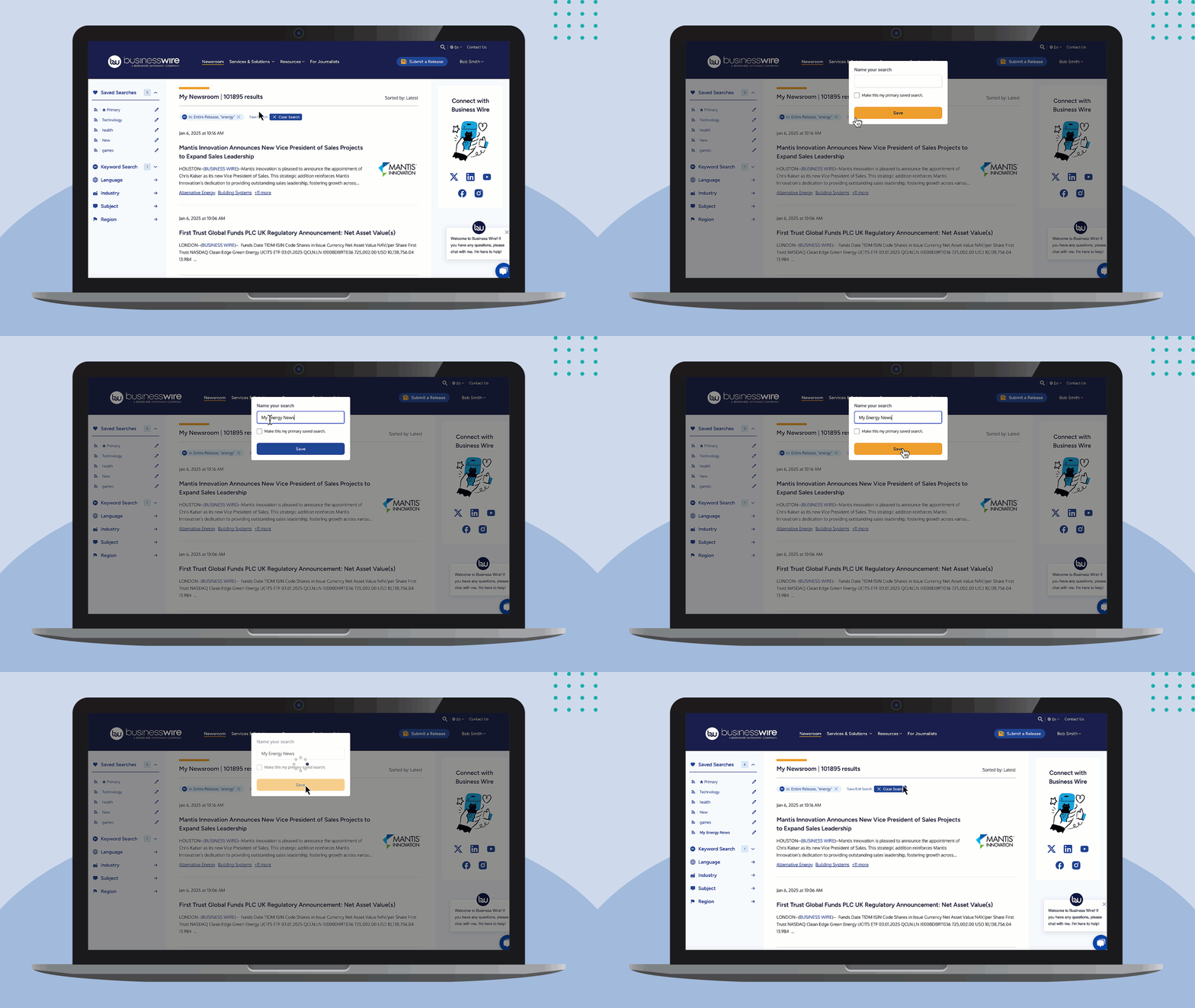
Primary Search
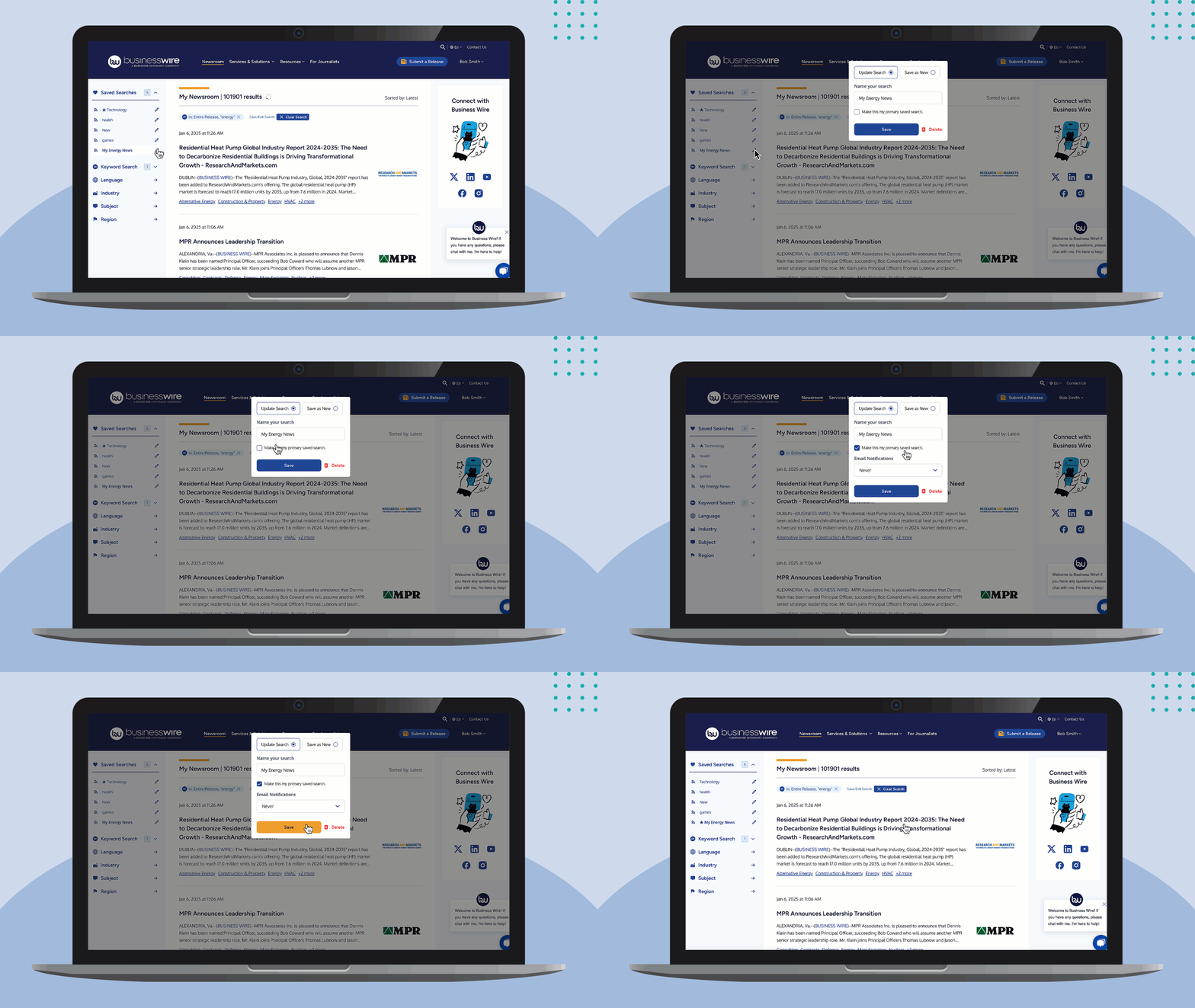
When you log in for the first time, you’ll see “Primary Search” listed under Saved Searches. This defaults to Business Wire’s full newsfeed unless you decide to customize it based on your interests.
The feed you select as your primary search is what you will receive via your PressPass email(s).
When saving a new search, you can save over your default primary search. You can edit your primary search at any time. Only one search can be saved as your primary search, but you can save as many searches as you like.
If you have other saved searches, you can make one of these your primary search. A star icon appears next to the name of your designated primary search.
Saving More Searches & Updating Saved Searches
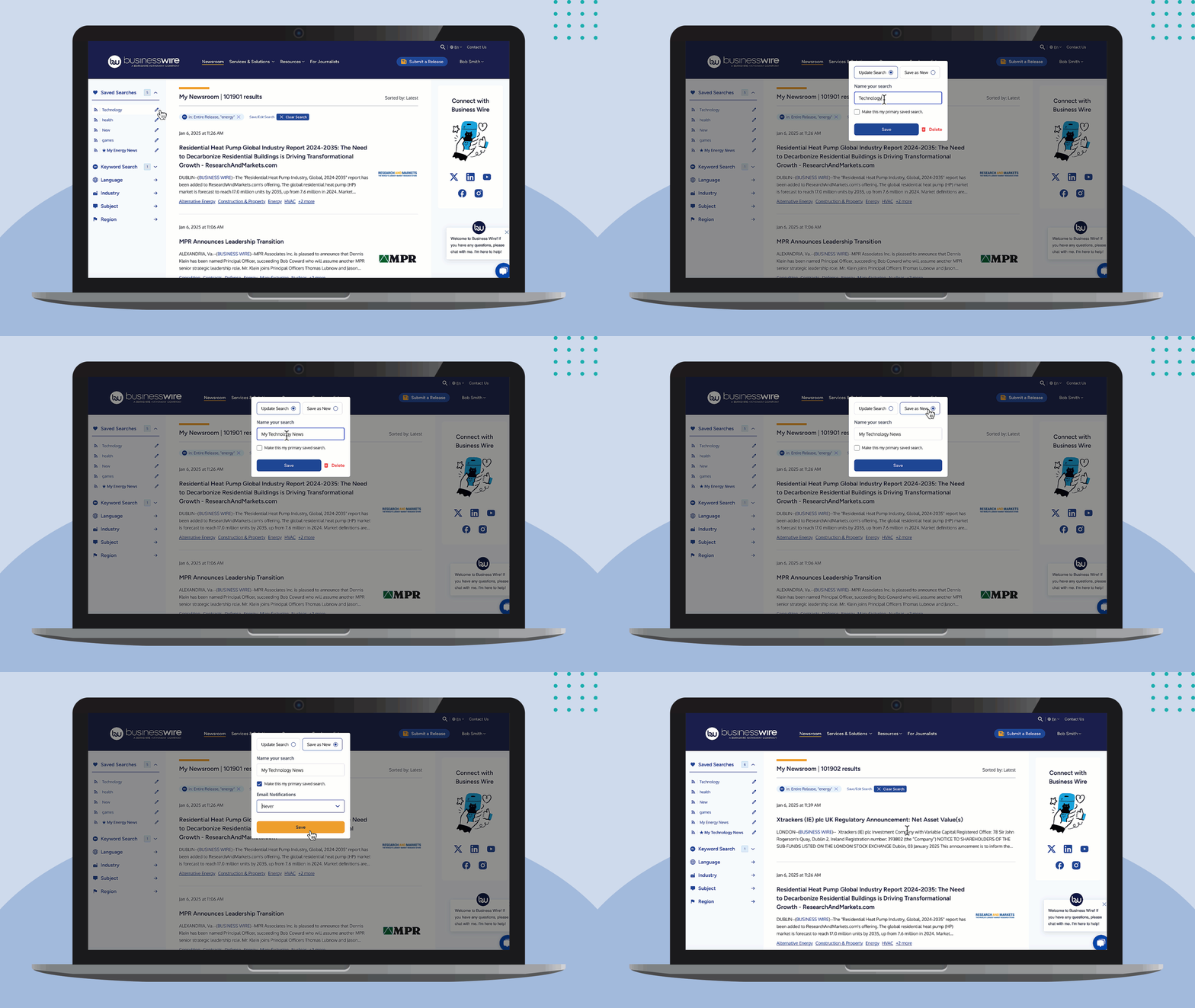
Enter keywords and/or select the filters you’d like and click “Save/Edit Search.” Name your search and it will appear under Saved Searches.
If you are viewing an existing saved search and you have added new keywords or filters, you can either update the existing search, or save it as a new search.
Click the pencil icon next to the name of your saved search or click “Save/Edit Search”.
- Update Search: Click “Update Search”, “Save.” This updates your existing saved newsfeed.
- Save as New: Click “Save as New,” enter a name, and click “Save.” This creates a new saved search.
If you’d like to delete one of your saved searches, click the pencil icon next to the name of your search and click “Delete.” You cannot delete your primary saved search.
Setting Your Notification Preferences
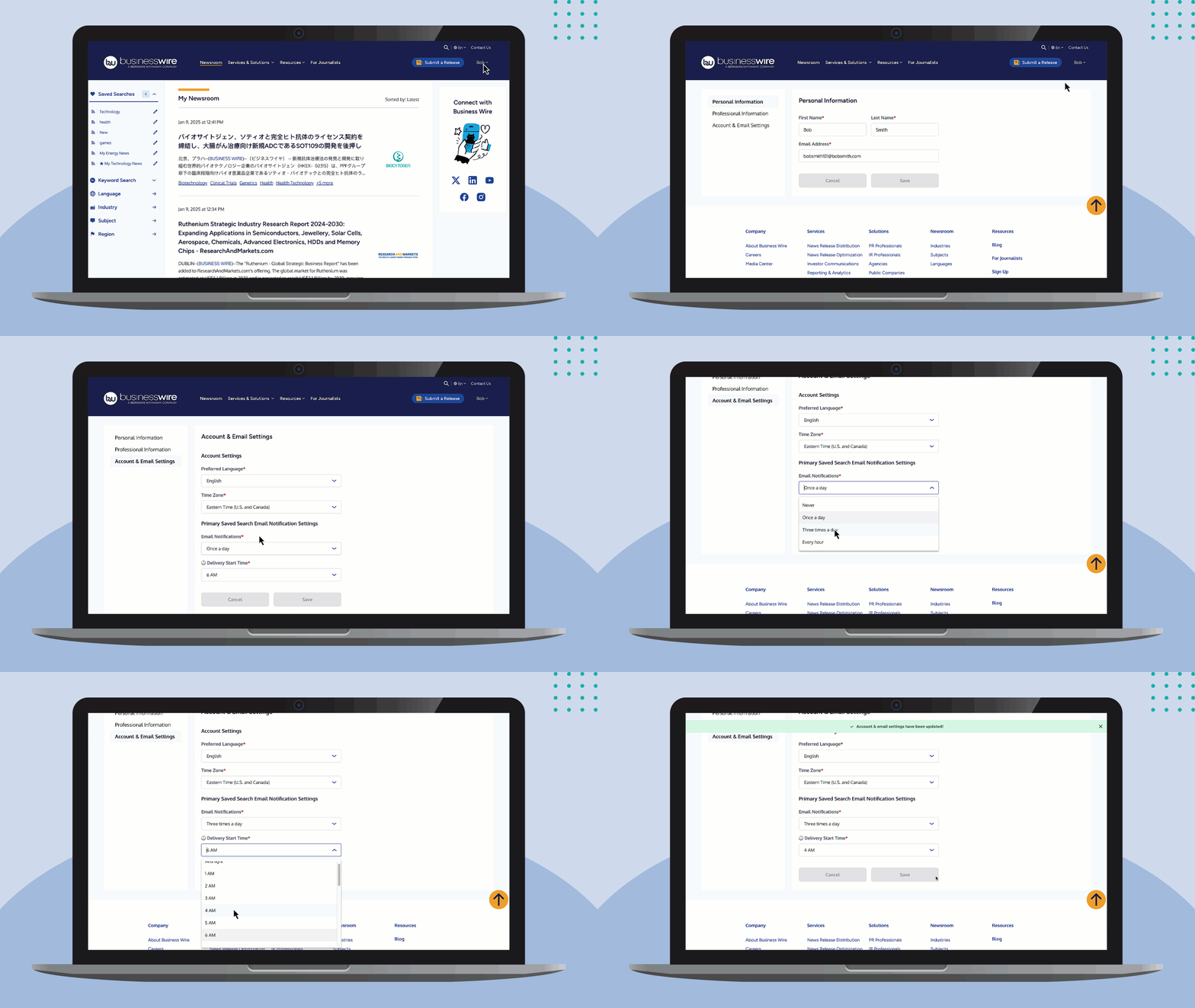
When saving a primary search, you have the option to set email notifications for this newsfeed. Select if you’d like to receive notifications and click “Save.”
You can also click your name in the top right corner, click “My PressPass Account”, and set your preferences in the “Account & Email Settings” section.
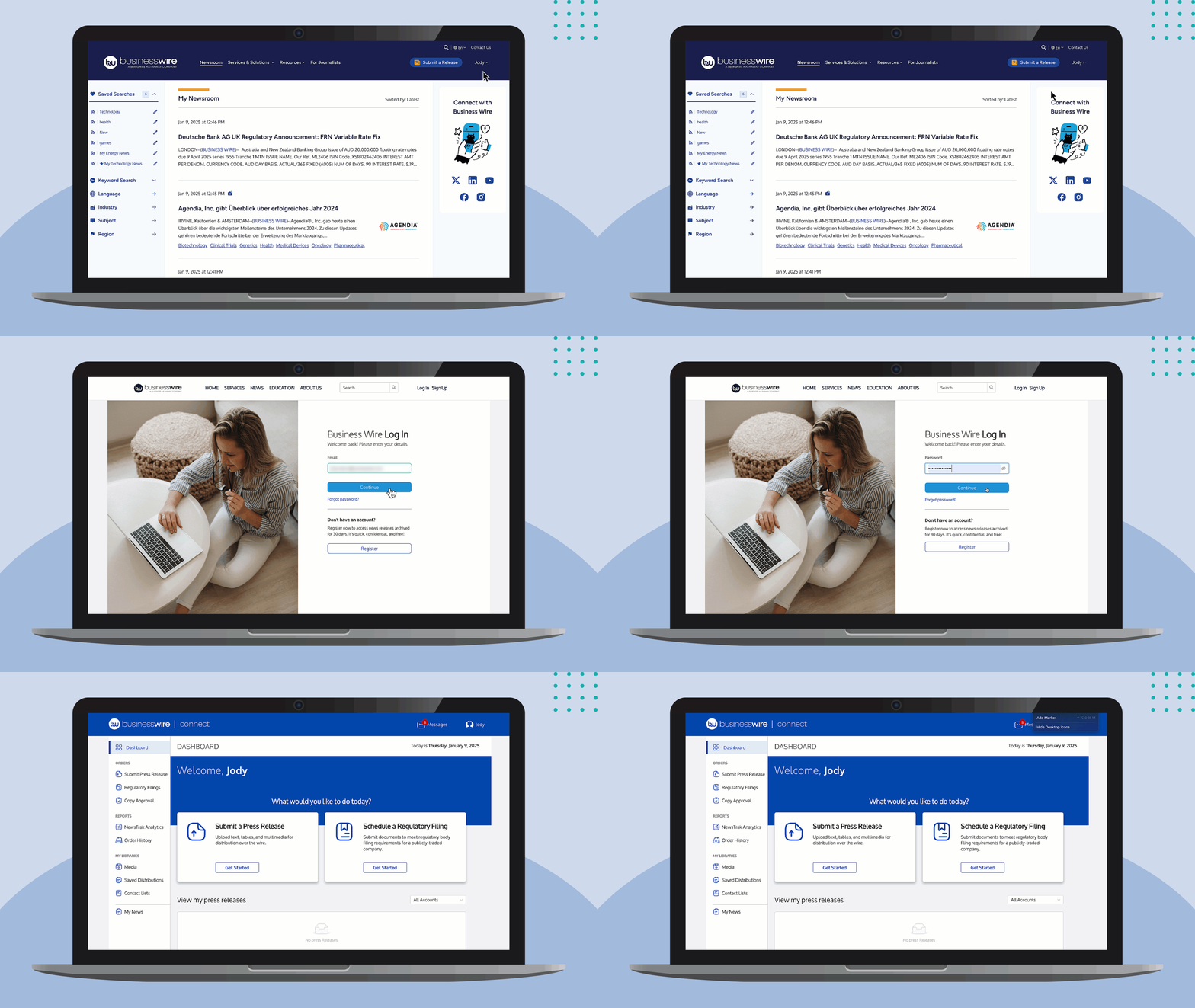
Logging In & Accessing Business Wire Connect
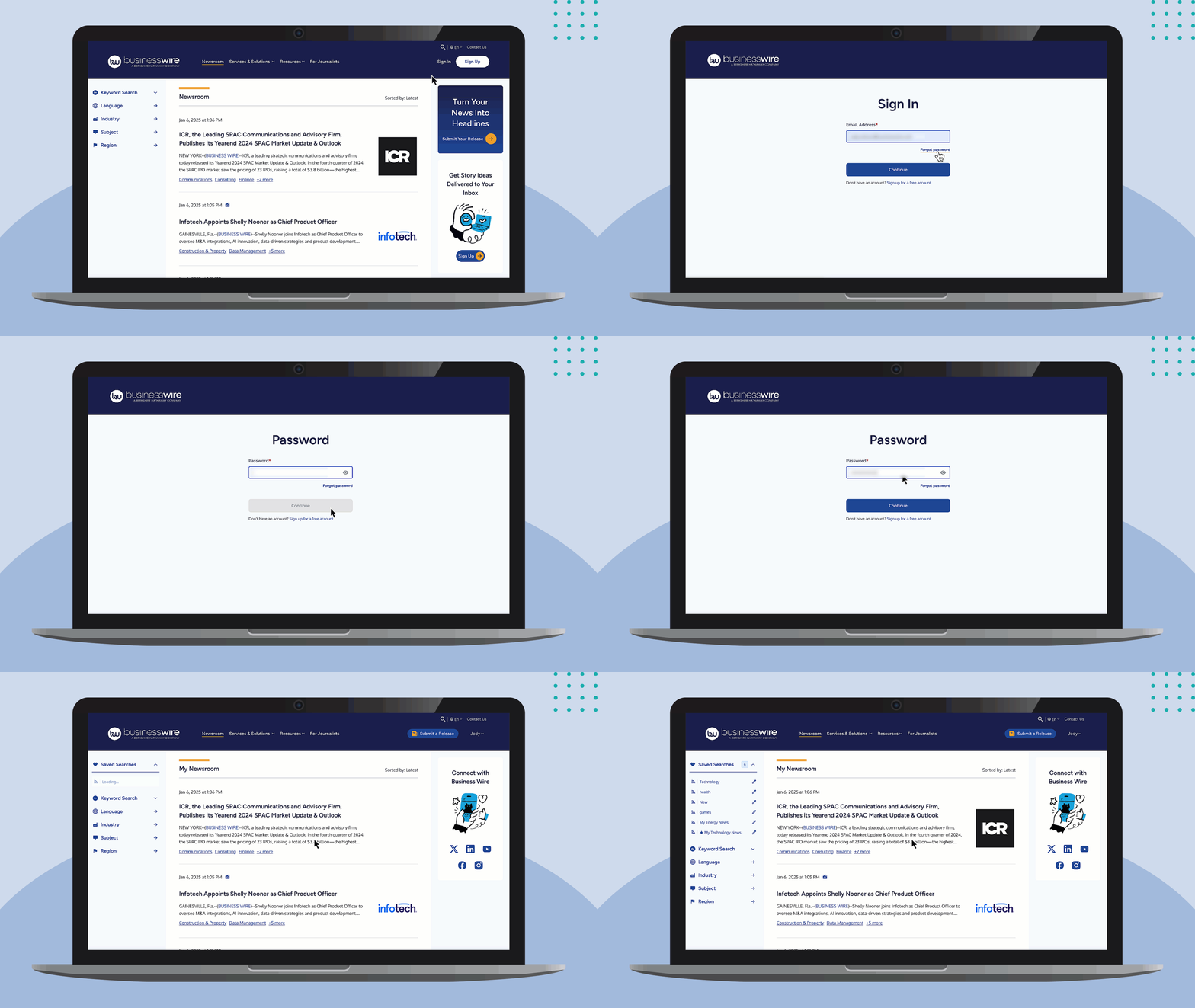
Click “Sign In,” enter your email address and password.
You can use either your Business Wire Connect or PressPass credentials to log in.
Once logged in you, you’ll see Business Wire’s newsfeed, featuring all news releases.
Tip: When you’re logged in, you can navigate to your Business Wire Connect account by 1) clicking the “Submit a Release” button in the top right corner, or 2) by clicking your name, then “My Connect Account” from the options displayed.
Creating a PressPass Account
With a PressPass Account, your customized newsfeed is sent directly to your inbox.
To get started, save a search and follow the prompts or click here.
Once you've completed either form, you can expect to receive your first PressPass email within 48 hours. In the meantime, feel free to continue browsing the news!
Interested in sending a news release? Get started!
Resetting Your Password
- Click Sign In at the top right
- Click Forgot password
- Enter your email address
- A six-digit code is sent to your email address from websupport@businesswire.com (this code expires in 10 minutes)
- Answer the security question
- Enter your new password (following the guidelines on screen)
- Click Update & Sign In (You’ll receive a confirmation email that your password has been updated from websupport@businesswire.com)
- Enter your email address
- Enter your new password